When two or more people are logged into a map at the same time, a small
co-presence indicator appears in the top right corner of the screen:
Rolling over the co-presence indicator opens a dialog box that let you learn more about, and, if you like chat with the other people listed .
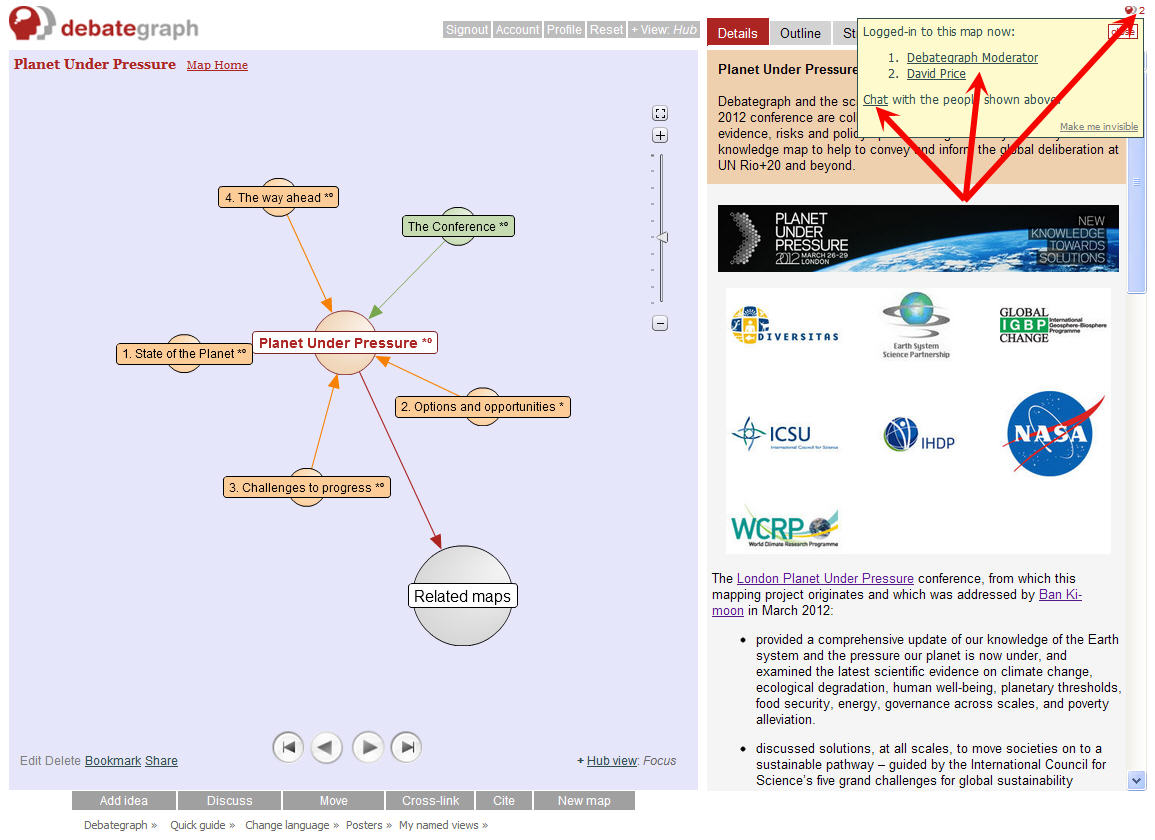
(1) The
Chat link works in the same way as the
Comment button and also displays your message (temporarily) as a chat alert on the main map screen.
(2) Each person's name is displayed as a link, which, when clicked, opens the
Map Community list with their profile highlighted; from where (if they allow this) you can send them a private direct message using the
Contact>> link and/or
Follow>> their public activity stream.